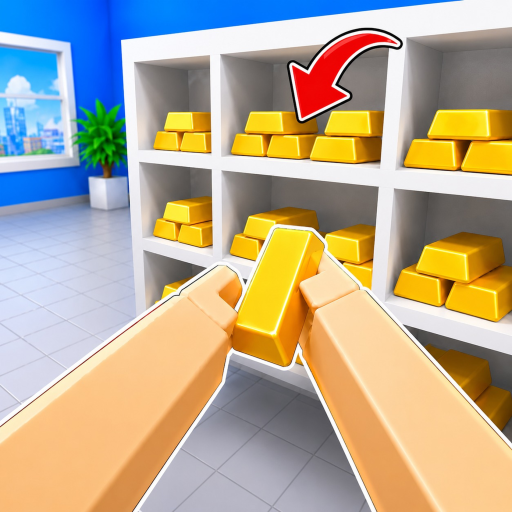
CleanTheBank
Essential Player Guide

Clean The Bank! Controls & Basics Guide

Official PC keybindings, controller mappings, safe inventory management steps, and verified documentation boundaries for Clean The Bank! on Roblox.

First-Screen Quick Answer

checked August 22, 2026

Quick Answer: Official Keybindings & Core Gameplay Loop

In Clean The Bank! on Roblox, official controls are documented by NightSync Studio for PC and Controller. On PC, use E / Click for Pickup/Place, R for Inspect, F to Drop, 1-9 to Switch Item, T for Unlock Mouse, and G for Magic Ability. On Controller, use RT for Pickup/Place, RS for Inspect, LT to Drop, and Y for Upgrades. For room placement and storage mechanics, refer to our Vaults & Item Placement Guide.

Pickup & Place
E / Click (RT)

Primary pickup and placement interaction

Inspect Item
R (RS)

Labeled Inspect (display details undocumented)

Drop Item
F (LT)

Release active item from inventory

Upgrades Menu
Y (Controller)

Official controller Upgrades binding

Evidence Boundary: PC and Controller controls are officially listed by NightSync Studio. The official listing maps G to 'Magic Ability' and Y to 'Upgrades'; specific in-game behavior, upgrade formulas, and placement mechanics are not documented.

Keyboard & Mouse

Official PC Controls & Keybindings

Official PC keybindings documented by NightSync Studio.

E or Left ClickPickup / Place

Official interaction keybinding to pick up and place items. Consult on-screen prompts during gameplay.

RInspect

Official keybinding labeled Inspect. Displayed information, preview mode, and UI behavior are not documented in official listings.

FDrop

Official keybinding to drop the currently active item from your inventory.

1 - 9 Number KeysSwitch Item

Official keybinding to switch between carried items across available inventory slots.

TUnlock Mouse

Official keybinding labeled Unlock Mouse. Further cursor behavior or interface interactions are not documented in official listings.

GMagic Ability

Official keybinding labeled Magic Ability. In-game effects, mechanics, and cooldowns are not documented in official listings.

Gamepad & Console

Official Controller & Gamepad Keybindings

Standard Xbox, PlayStation, and generic gamepad mappings.

RT (Right Trigger)Pickup / Place

Official controller interaction trigger used to pick up and place bank items.

RS (Right Stick Click)Inspect

Official controller button labeled Inspect. Displayed details and camera behavior are not documented in official listings.

LT (Left Trigger)Drop

Official controller trigger mapped to drop the currently active inventory item.

Y ButtonUpgrades

Official controller mapping for Upgrades. Specific upgrade categories, costs, and effects are not documented in official listings.

Mobile Controls: The official Roblox experience listing does not document mobile controls.

Core Controls Flow

Safe Step-by-Step Controls & Inventory Sequence

Follow this safe sequence to manage items using verified keybindings and on-screen prompts.

1

Pick Up Items Using Primary Interaction

Approach a bank item and press E (or Left Click) on PC or RT on Controller to pick it up into your active inventory slot.

2

Switch Between Carried Inventory Slots

When carrying multiple items, use the number keys 1-9 on PC to cycle between your available inventory slots and select your active item.

3

Use Inspect (R / RS) as Mapped

Press R on PC or RS on Controller for the Inspect action. The official listing designates this binding as Inspect; displayed information or preview behavior is not documented.

4

Drop Items to Manage Inventory Slots

Press F on PC or LT on Controller to drop the currently active item when you need to free up inventory space.

5

Place Items and Consult Vault Guide for Locations

Use E / Click or RT to place items when near designated storage locations. For specific room names and observed storage mechanics, refer to our dedicated Vaults & Item Placement Guide.

Observed Systems

Upgrades & Game Interface Status

What is officially documented and what remains unconfirmed regarding in-game upgrades.

Upgrades Keybinding Status

Official Controller Mapping

The official game listing confirms an Upgrades function mapped to Y on controllers. Exact upgrade categories, tier pricing, and progression scaling are not documented in official listings.

Gameplay HUD & Progression Details

Pending Details

While general progression concepts exist, specific upgrade modifiers, movement speed values, and economy formulas are not documented in developer releases.

Evidence Status: Upgrade existence is officially documented via the controller mapping (“Y = Upgrades”). Exact costs, multipliers, and progression benefits remain undocumented in official text.

Keybinding

Magic Ability (G Key)

Official listing keybinding.

The official Roblox experience listing maps G to 'Magic Ability'.

Evidence Boundary

The official listing maps G to ‘Magic Ability’. No purpose, in-game effect, or cooldown duration is documented in official listings.

Evidence Boundary

Official vs. Undocumented Controls Checklist

A clear distinction between what developer listings confirm and what remains undocumented.

Officially Documented Keybindings

NightSync Studio explicitly documents these exact keybindings in the Roblox experience description:

  • Pickup / Place: Mapped to E or Left Click on PC, and RT on Controller.
  • Inspect: Mapped to R on PC, and RS on Controller.
  • Drop: Mapped to F on PC, and LT on Controller.
  • Switch Item: Mapped to number keys 1-9 on PC.
  • Unlock Mouse: Mapped to T on PC.
  • Magic Ability: Mapped to G on PC.
  • Upgrades: Mapped to Y on Controller.

Undocumented Operational Details

The official Roblox experience description does not document the following mechanics:

  • Inspect Display: What information, model preview, or camera behavior Inspect triggers is not documented.
  • Unlock Mouse Details: Specific cursor mechanics or UI interaction behavior for key T are not documented.
  • Magic Ability Mechanics: Effects, duration, and cooldowns for key G are not documented.
  • Mobile Controls: The official Roblox experience listing does not document mobile controls.
  • Placement Details: Exact placement rooms and shelf rules are not in the controls list (see our vault guide).
Troubleshooting

Common Controls Pitfalls

Avoid these common keybinding and inventory management mistakes.

  • Mistaking Drop for Place: Pressing F (LT) drops an item onto the floor. Use E / Click (RT) when interacting to place items.
  • Selecting the Correct Inventory Slot: When carrying multiple items, press number keys 1-9 on PC to cycle to the intended item before attempting an action.
  • Using Unmapped Controls: Always consult the official keybindings list (e.g. E/Click, R, F, 1-9, T, G on PC) rather than guessing unofficial inputs.
Stuck Recovery

Safe In-Session Stuck Help

Source-supported steps for resolving input or inventory issues.

  • Managing Inventory Overflow: Use 1-9 to switch between carried items, or press F (LT) to drop items from your active inventory slot.
  • Testing Mapped Bindings: If an input does not register, verify your active keybinding against the official list (E/Click, R, F, 1-9, T, G) and check current on-screen prompts.
  • Placement Locations: If you are unsure where to take items, refer to our dedicated Vaults & Item Placement Guide for observed room labels.
Controls FAQ

Frequently Asked Questions About Controls & Basics

Direct answers to essential player gameplay questions.

Which controls are officially documented for Clean The Bank!?

NightSync Studio officially lists PC keybindings (E/Click, R, F, 1-9, T, G) and controller mappings (RT, RS, LT, Y) in the Roblox experience description.

What is the Magic Ability (G key) in Clean The Bank!?

The official Roblox experience listing maps G to 'Magic Ability'. Official documentation does not provide details on in-game mechanics, effects, or cooldowns.

What does the Inspect key (R or RS) do in Clean The Bank!?

Key R on PC and Right Stick (RS) on controller are officially labeled 'Inspect'. Official documentation does not describe the specific information or interface displayed during inspection.

How do you manage carried inventory items in Clean The Bank!?

Use number keys 1-9 on PC to switch active items, or press F (LT on controller) to drop an item. Consult our vault guide for observed room placement details.

Continue Your Clean The Bank! Preparation

Check out our vault sorting guide, codes status tracker, and official links.